Replication Steps
- Clone the repo
git clone <repo-url> cd cw-observability/terraform -
Create an EC2 key pair in your target region (AWS Console → EC2 → Key Pairs → Create key pair, or
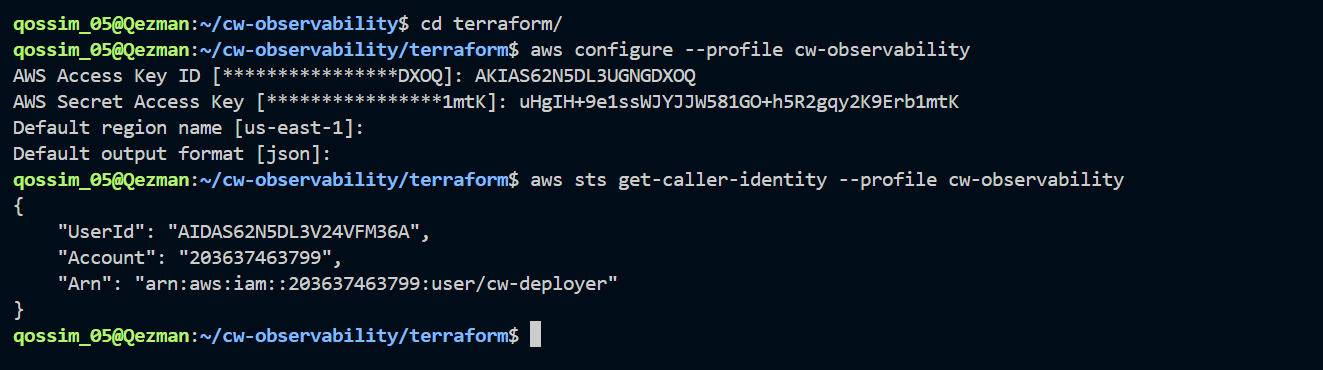
aws ec2 create-key-pair). Download and store the.pemfile locally (e.g.~/.ssh/),chmod 400. Note the exact key pair name - this is what goes in Terraform, not the file path.[Screenshot: key pair created in console, showing the name] - Configure AWS CLI credentials for a dedicated deployer identity (not root):
aws configure --profile cw-observabilityEnter access key, secret key, region, output format.
-
Populate
terraform.tfvars(committed, non-sensitive):aws_region,project_name,vpc_cidr,public_subnet_cidr,availability_zone,ssh_allowed_cidr(leave as placeholder),key_name(from step 2).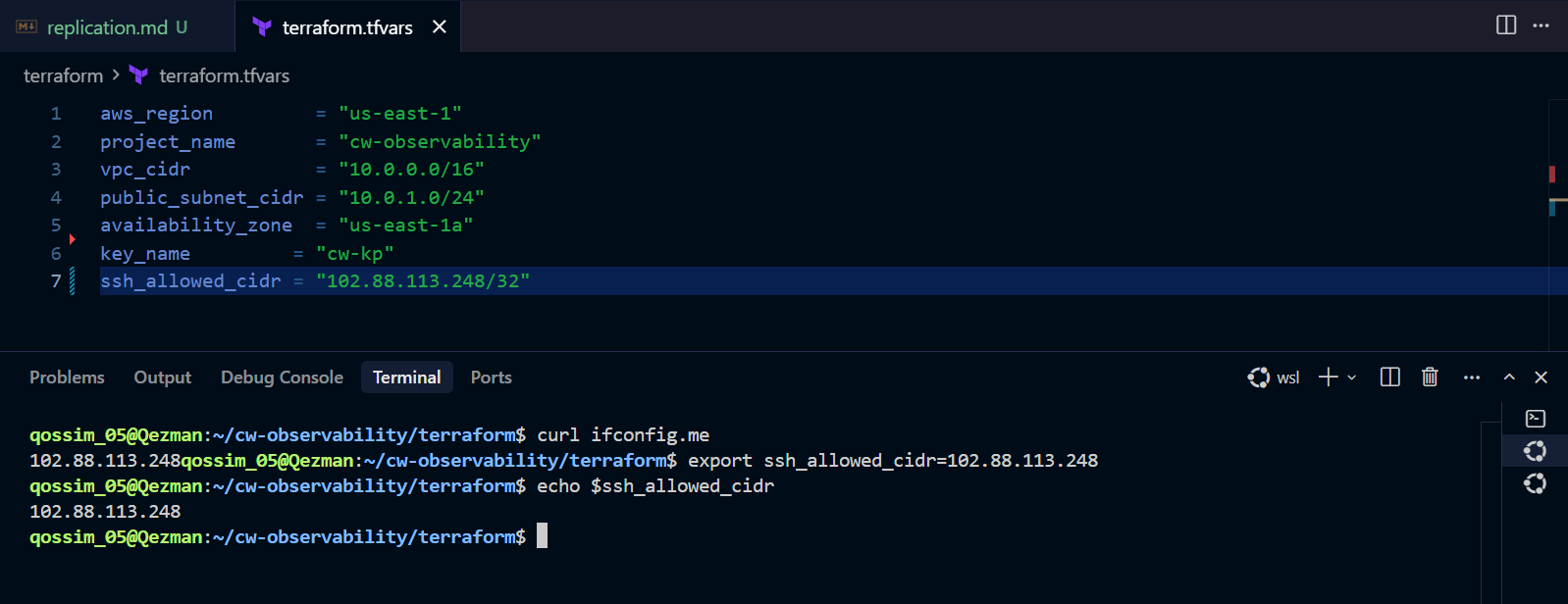
-
Populate
secrets.tfvars(gitignored, sensitive):ssh_allowed_cidr= your real IP (curl ifconfig.me),alarm_email,alarm_sms.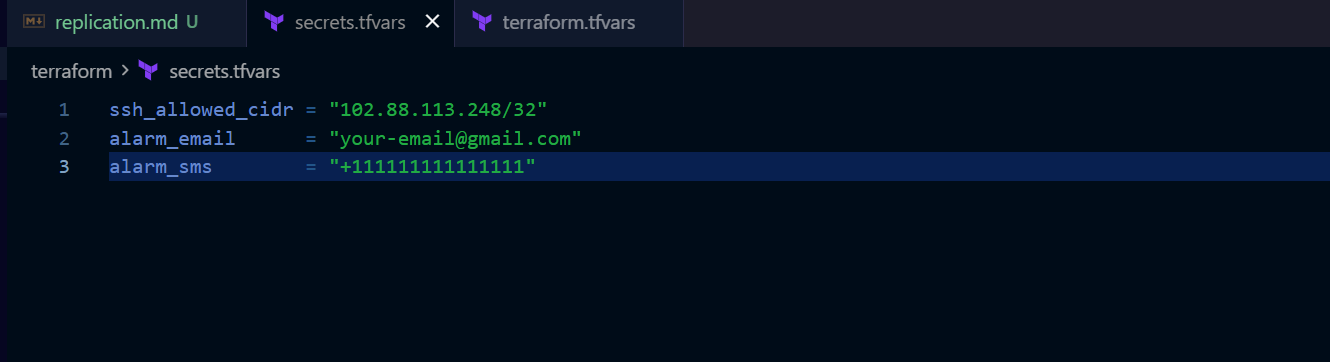
- Initialize Terraform:
terraform init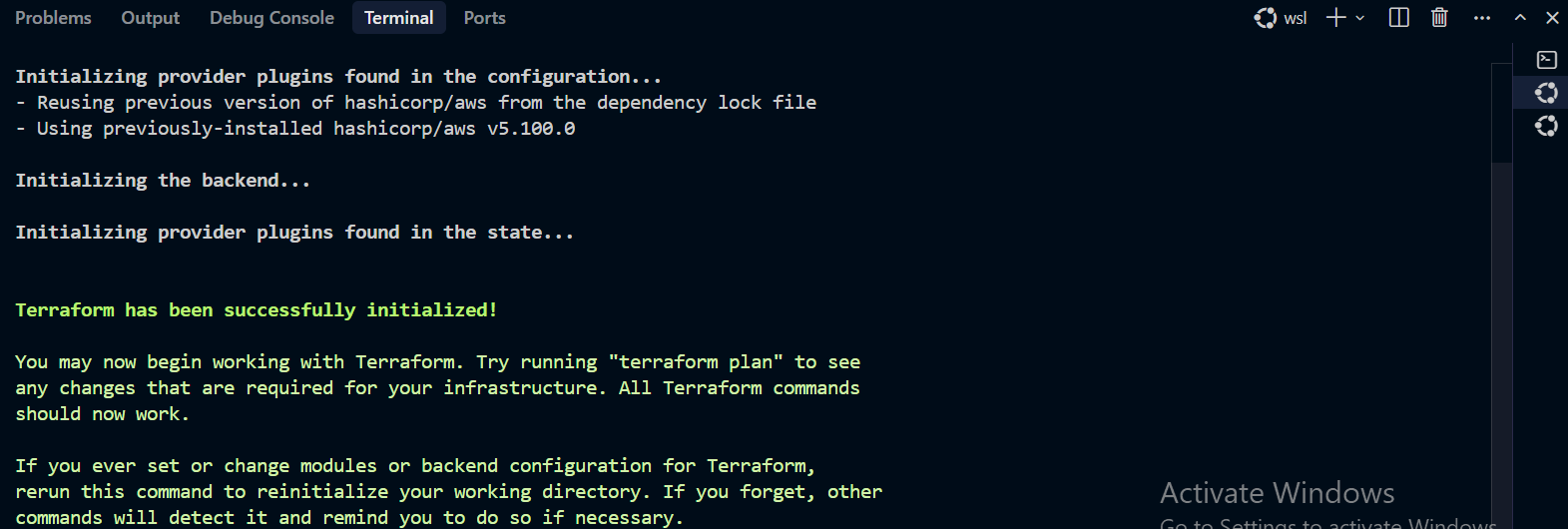
- Run the plan:
terraform plan -var-file="terraform.tfvars" -var-file="secrets.tfvars"Confirm resource count matches expectations,
0 to destroy.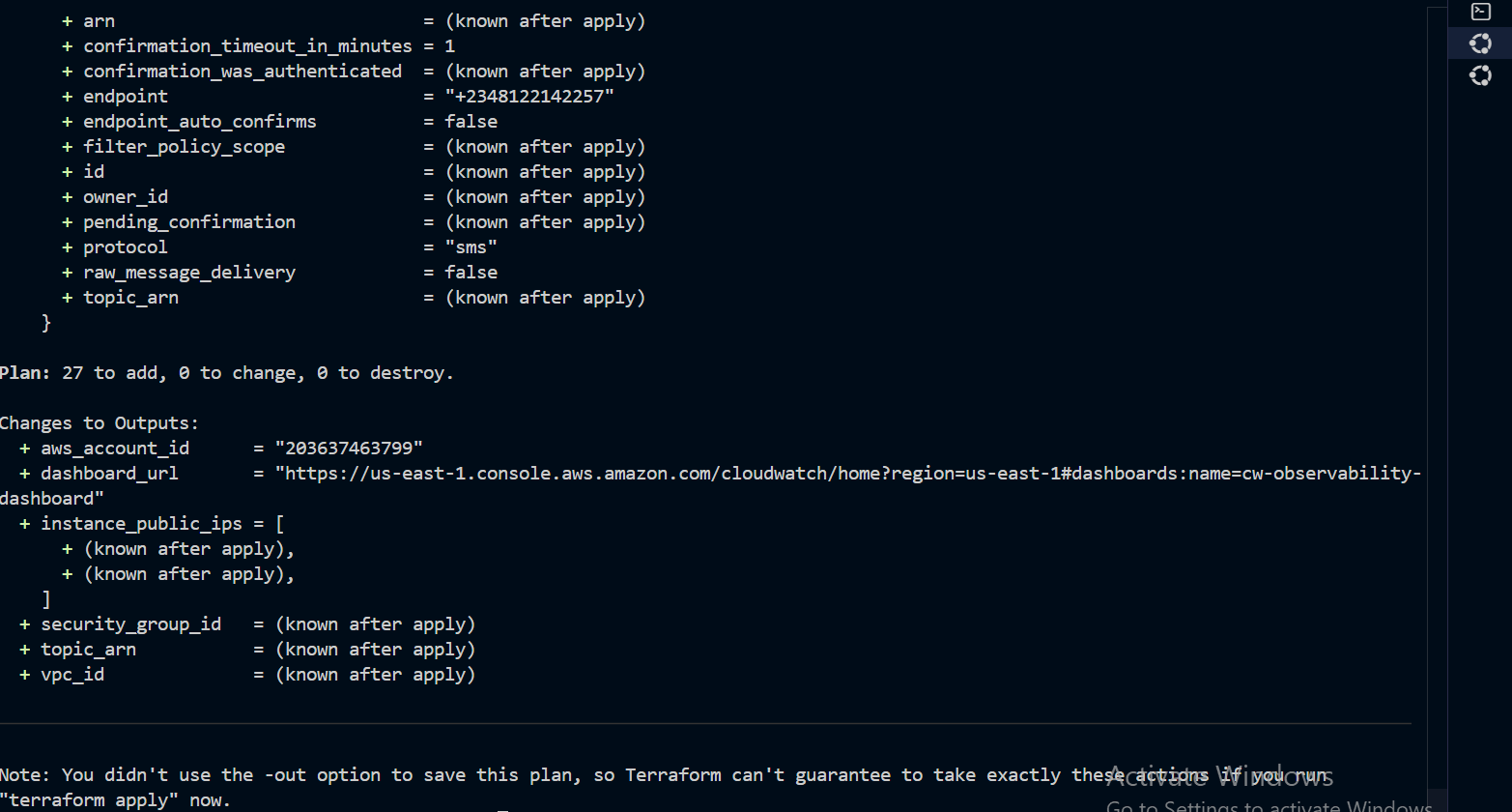
- Apply:
terraform apply -var-file="terraform.tfvars" -var-file="secrets.tfvars"
-
(gap in your numbering - decide whether this stays a gap or gets a step)
- Verify SSH access to each instance:
ssh -i ~/.ssh/<your-key>.pem ec2-user@<instance-public-ip>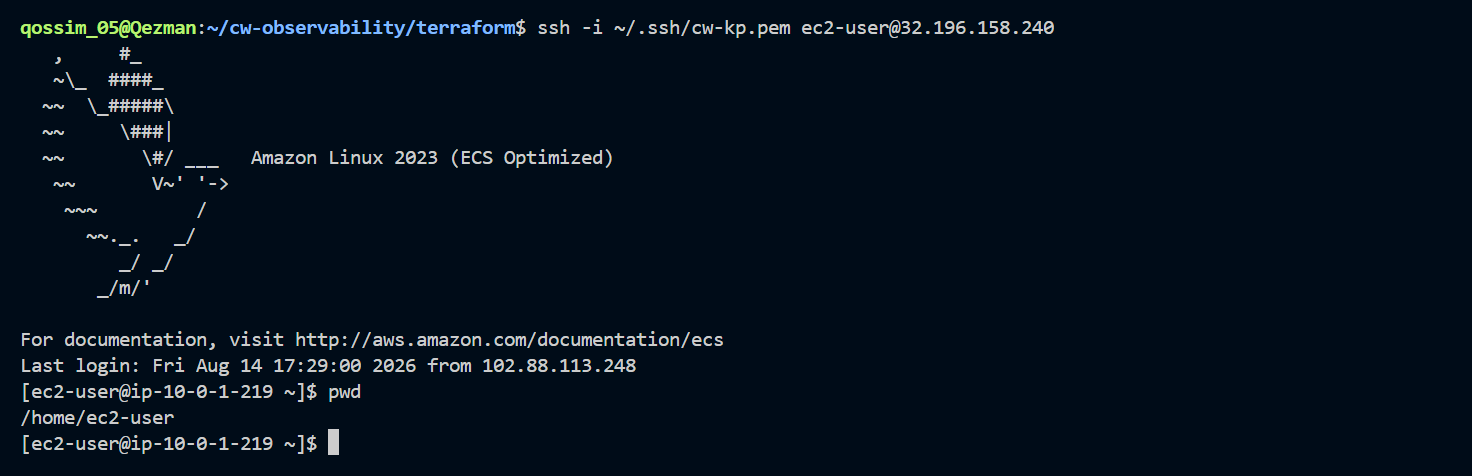
- Verify custom metrics are publishing:
aws cloudwatch list-metrics --namespace <project_name> --profile cw-observabilityConfirm
mem_used_percent,disk_used_percent,swap_used_percentall present.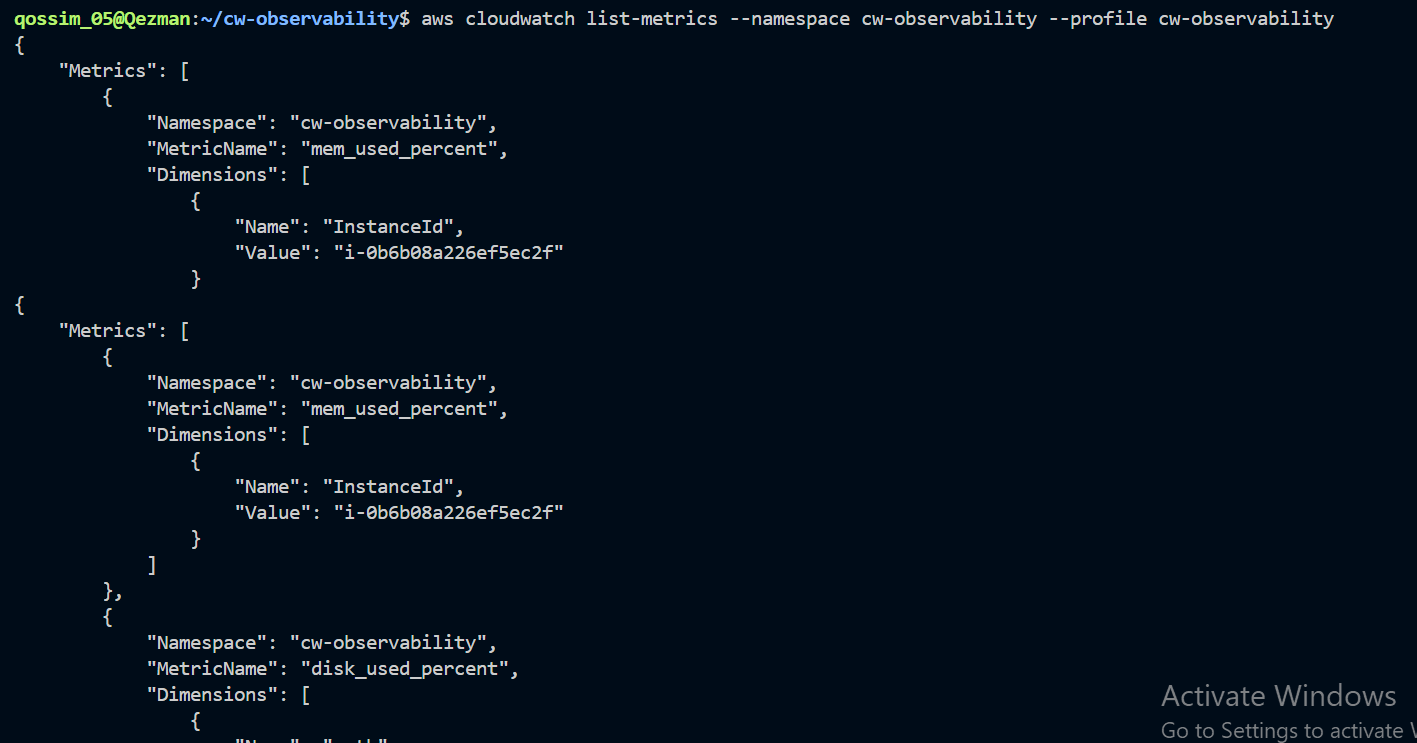
-
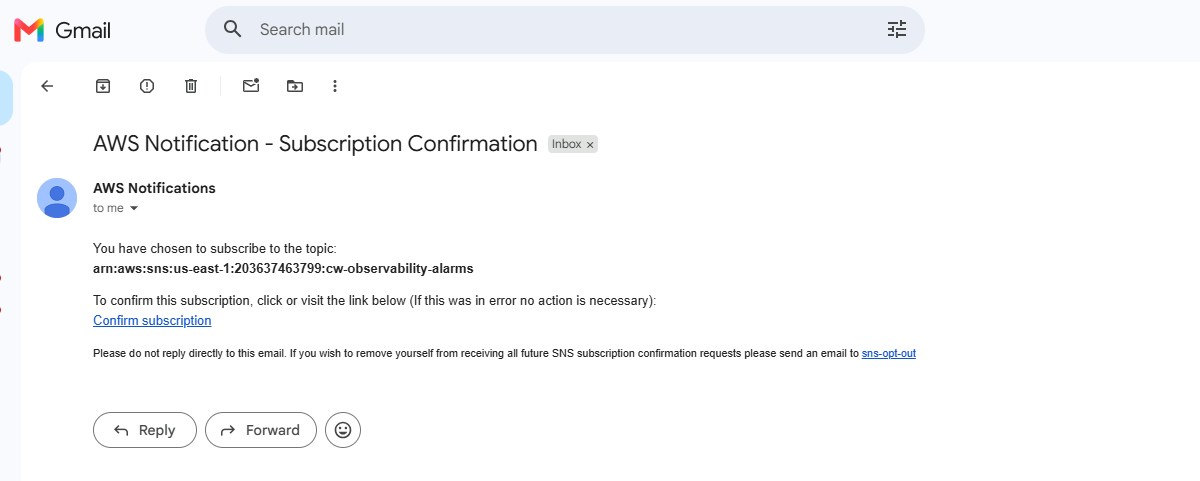
Confirm the SNS email subscription - check inbox/spam for the confirmation email and click it.
- View the CloudWatch dashboard:
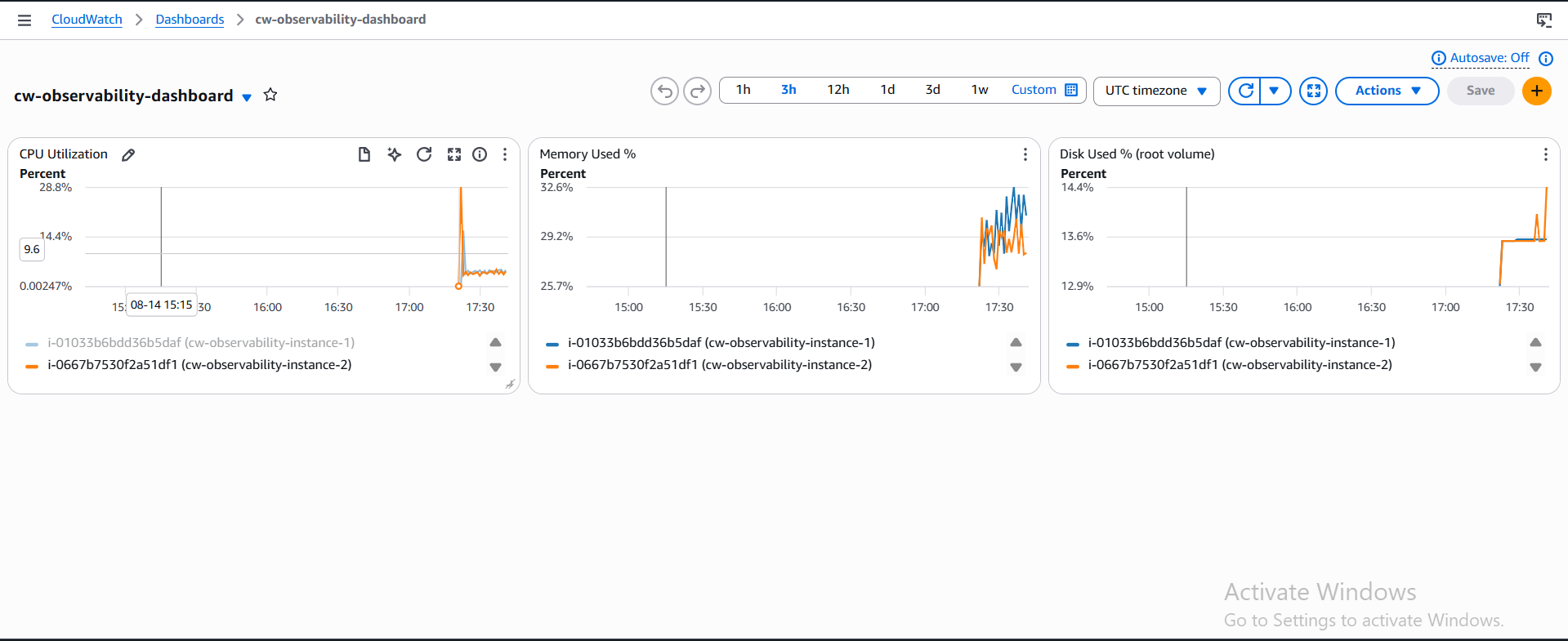
terraform output dashboard_urlOpen the link, confirm all three widgets render with live data.
- Trigger a test alarm to confirm the full alerting pipeline:
aws cloudwatch set-alarm-state --alarm-name <project_name>-cpu-high-1 \
  --state-value ALARM --state-reason "manual test" --profile cw-observability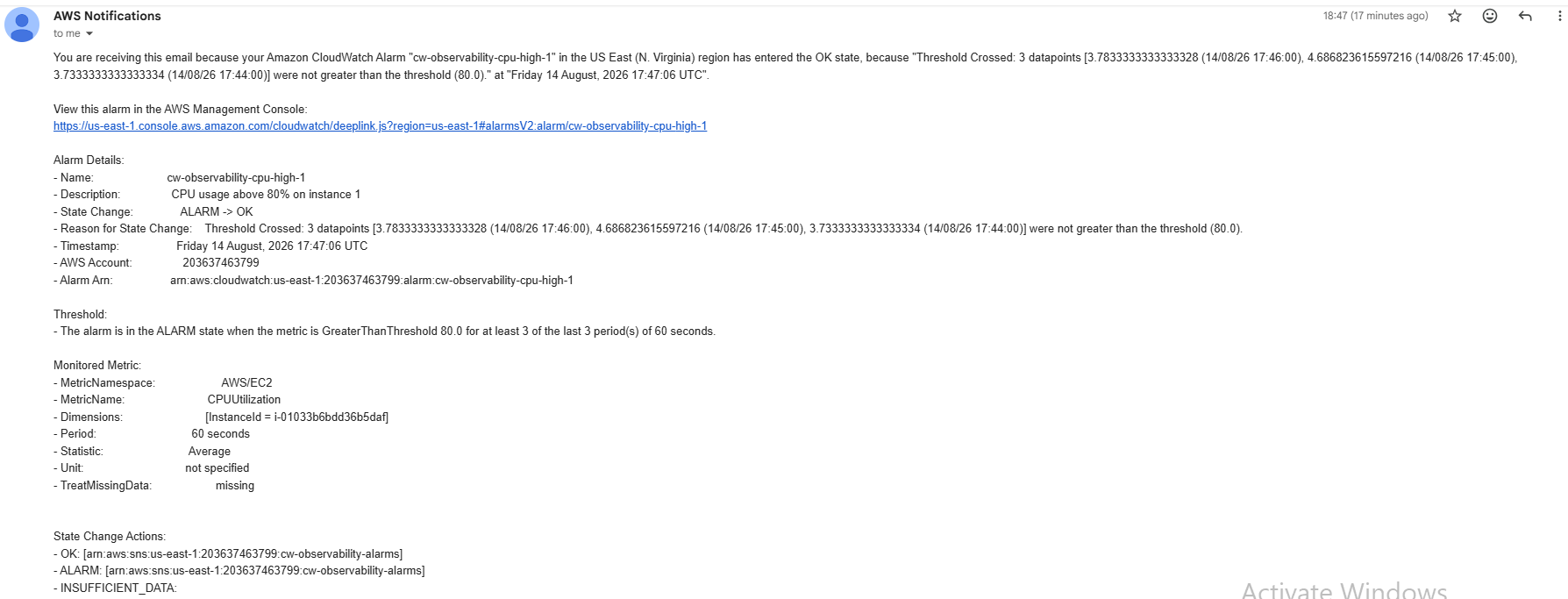
- Real-load test:
ssh -i ~/.ssh/<your-key>.pem ec2-user@<instance-public-ip>
sudo dnf install -y stress-ng
stress-ng --cpu 2 --timeout 300s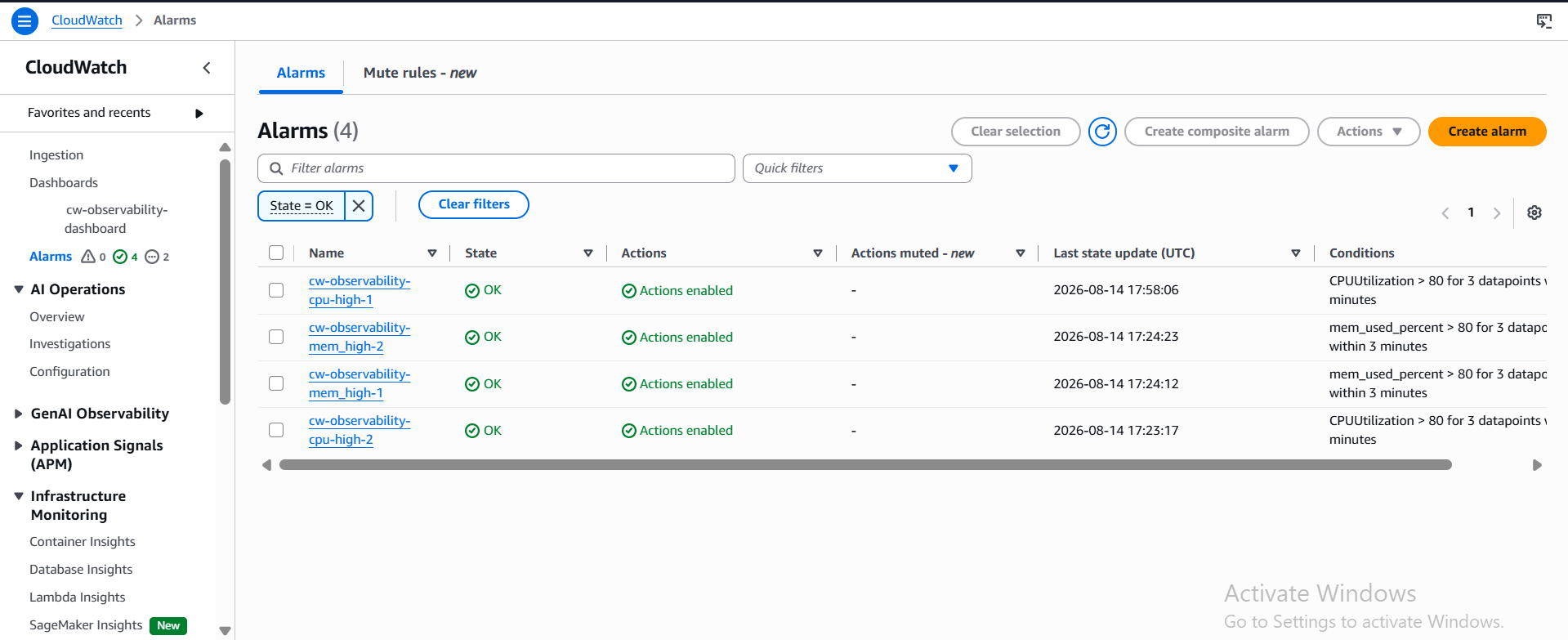
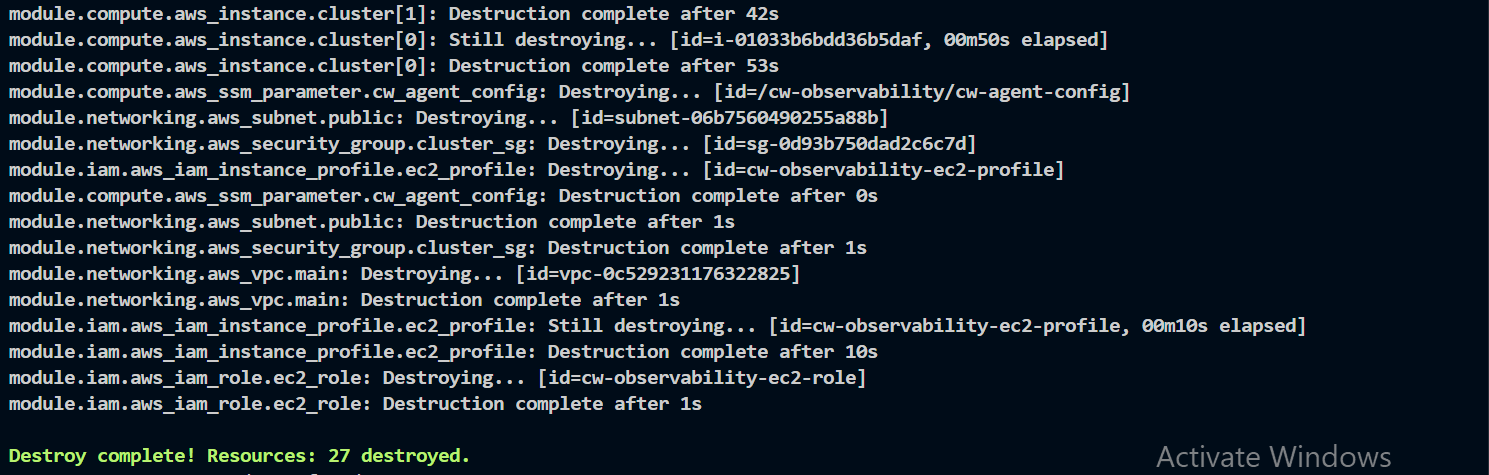
- Tear down when finished:
terraform destroy -var-file="terraform.tfvars" -var-file="secrets.tfvars"